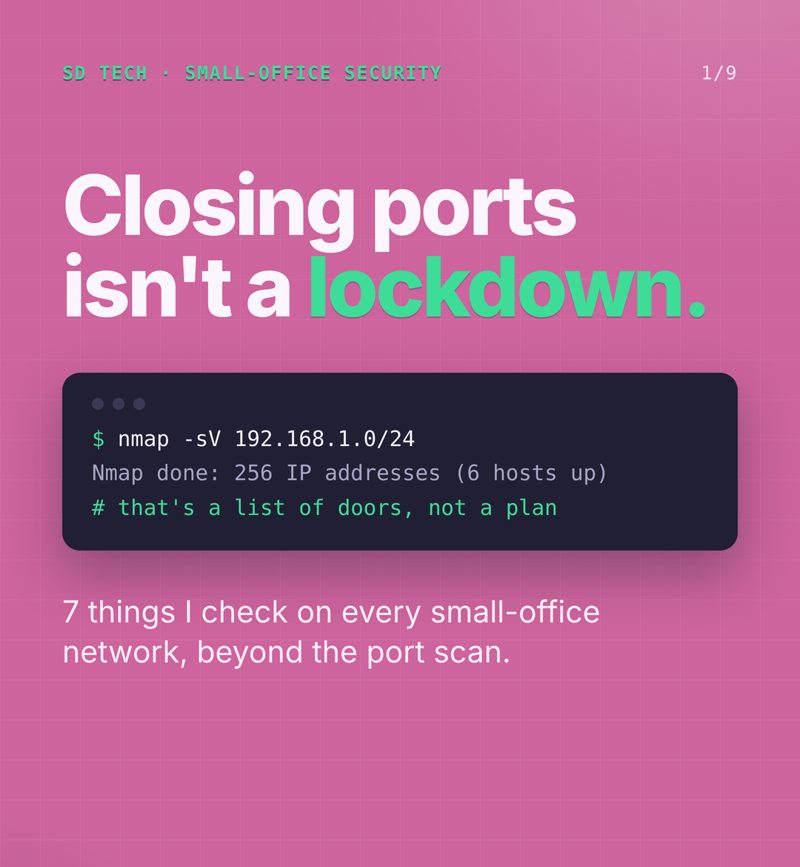
Running a port scan on your office network is a good start. It tells you which doors are open. It doesn't tell you why they're open, what's behind them, or what to change. Closing a few ports and calling it done is how offices end up feeling safe without being safe.
These are the seven things I check on every small-office network, beyond the scan. None of them need new hardware.
1. Every open port has an owner and a reason
For each open port, someone should be able to say what it's for and who needs it. "The old IT person opened it" isn't a reason. If nobody can name a reason, it closes, and you see what complains.
2. Deny by default
The firewall should block everything coming in from the internet, then allow only what the public truly needs. For most small offices that's very little, often nothing, because the website and email live with a host. Also turn off UPnP on the router. It lets devices open ports for themselves, which is exactly the decision you want to keep for yourself.
3. Admin screens never face the internet
Remote Desktop, SSH, the firewall's own admin page, the storage box, the camera recorder, the printers: none of their admin screens should be reachable from the internet. If someone needs them from outside, they connect to a VPN first. That one rule closes most of what I find.
4. What's behind the door is patched
An open port in front of an up-to-date service is a managed risk. An open port in front of an old one is the real problem. So the check includes firmware on the firewall, the Wi-Fi, the storage box and the cameras, not just Windows updates. Those boxes rarely update themselves.
5. Sign-ins are protected
Anything that accepts a sign-in from outside, such as the VPN or a remote access tool, needs two-step sign-in. It should also lock out or slow down repeated failed attempts. On Linux servers, tools like fail2ban or CrowdSec block addresses that keep failing.
6. Outbound traffic is watched too
Most security talk is about what comes in. But many attacks need to call home once they're in. At minimum, devices that have no reason to reach the internet, like the camera recorder or the building's controllers, shouldn't. DNS filtering that blocks known bad sites is a cheap layer for everyone else.
7. The network is split
Guests on the guest Wi-Fi. Cameras and smart devices on their own network. Office computers separate from both. That way, one infected laptop, or one cheap camera with a weak password, can't see the server or the accounting PC.
Then look from the outside
The last step is to see what the internet sees:
- Scan your own public address from another network, such as a phone hotspot. Anything that answers is open to the world.
- Look up your public address on Shodan, a search engine for internet-connected devices. It often shows services the owner forgot about.
One common myth: moving Remote Desktop or SSH to a different port number. It cuts down the noise in the logs, but it isn't security on its own. The service is still on the internet, and scanners find it within days.
What to ask your IT person
- Can you list every port open to the internet, with what it's for and who needs it?
- Is UPnP turned off on our router?
- Are the cameras and guest Wi-Fi separate from our office computers?
A look at the network from inside and outside is part of every free IT check-up. If you run a trades office or small business in the Fraser Valley, book one at sd-techsolutions.com.
Transcript
Closing ports isn't a lockdown. Here are seven things I check on every office network. One. Every open port needs an owner and a reason, or it closes. Two. Deny by default. Allow in only what the public truly needs. Three. Admin screens never face the internet. VPN first. Four. Patch what's behind the door, firmware too. Five. Outside sign-ins need two-step, and repeated failures get blocked. Six. Watch outbound traffic. Devices with no reason to reach the internet shouldn't. Seven. Split the network. Guests, cameras and office computers, apart. None of this needs new hardware. For a free one-hour IT check-up, email me through sd-techsolutions.com.
This started as a LinkedIn post. Join the conversation there.