A cyber insurance renewal form often arrives with the broker's note: "just fill this in and send it back." Then you turn the page and it reads like a security audit. Insurance Bureau of Canada's own cyber insurance checklist gives a fair preview: what information you keep, who is responsible for security, whether staff are trained, and which controls you use for authentication, anti-virus and backups.
The answers matter. They help set the price, and they describe what you told the insurer you were doing. So answer each one from something you checked, and keep what you checked.
The short version
- The security questions on a renewal form line up closely with the Cyber Centre's basic actions for small organizations.
- Answer each one from something you checked, and keep what you checked.
- If an answer is "mostly," say so and give the date it will be done. Your broker can work with that.
Where the questions come from
The security questions line up closely with the Canadian Centre for Cyber Security's foundational cyber security actions for small organizations (ITSAP.10.300): strong passwords and multi-factor authentication, automatic updates, backups, security software, staff training, and an incident response plan. Each section of that page ends with yes-or-no questions of its own, which makes it a good practice run before the real form. For the fuller list, see the Cyber Centre's baseline cyber security controls.
The five questions, and the evidence for each
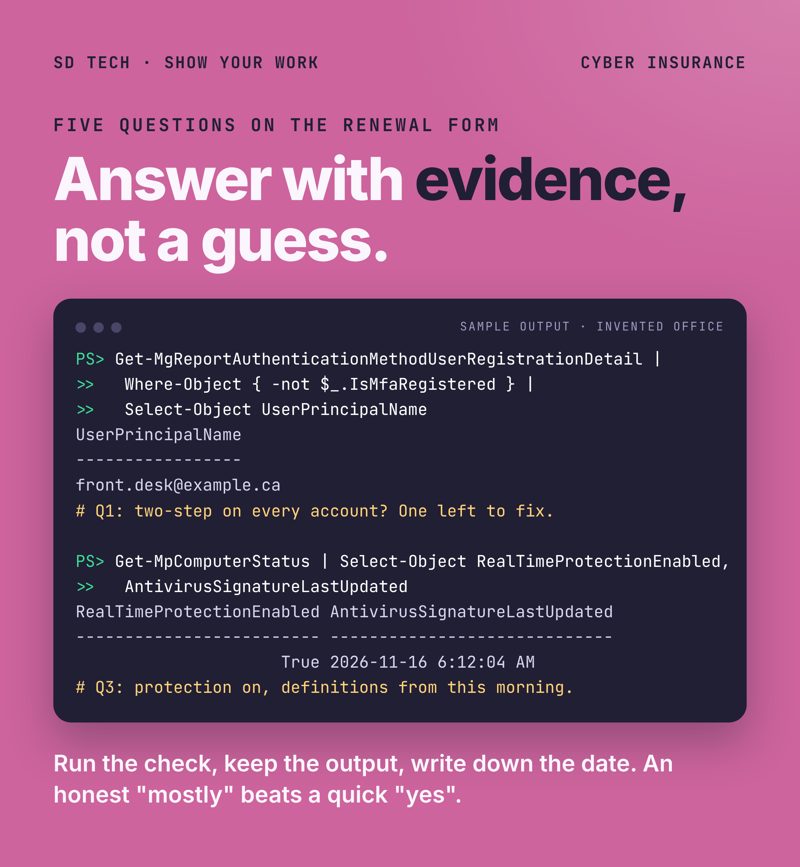
1. Is two-step sign-in on for every account? Email first, then anything that reaches the office from outside, then admin accounts. The evidence is a list of accounts that haven't registered a second step. If that list isn't empty, the honest answer is "all but these, finished by this date."
2. Do you back up, and have you tested a restore? The Cyber Centre asks both, plus whether a copy is kept offline or off-site. The evidence is the date of your last test restore and what you restored. A backup nobody has restored is a hope, not a backup.
3. Is protection running on every computer? Anti-virus or anti-malware installed, switched on, and updating itself. The evidence is a per-machine check showing real-time protection on and definitions from the last day or two.
4. Are updates applied, and is anything unsupported? Automatic updates on, and a list of anything that can't be updated any more, with a plan to replace it. Windows 10 PCs without extended security updates belong on that list.
5. Do you have a plan for a bad day? Who you call, how you reach them if email is down, and where the contact list lives. ISED's CyberSecure Canada offers a free incident response plan template, linked from the Cyber Centre's page. Staff training usually sits next to this question: a short phishing refresher once a year, with the date written down, is a real answer.
What I ran
For a Microsoft 365 office, the first check lists everyone without a registered second step (it needs the Reports Reader or Global Reader role):
Connect-MgGraph -Scopes AuditLog.Read.All
Get-MgReportAuthenticationMethodUserRegistrationDetail |
  Where-Object { -not $_.IsMfaRegistered } |
  Select-Object UserPrincipalName
What to look for: an empty list is the goal. Each name is either a person to help this week or an old account to remove. The report reads the user registration details Microsoft keeps for every account.
On each Windows PC with Microsoft Defender, the protection check is one line (Get-MpComputerStatus):
Get-MpComputerStatus | Select-Object RealTimeProtectionEnabled, AntivirusSignatureLastUpdatedWhat to look for: True, and a date from today or yesterday. A False or an old date is a machine to look at before you tick the box. Save the output with the date in the file name.
A checklist for the renewal
- ☐ Two-step sign-in report run; every name on it fixed or given a date.
- ☐ Last test restore written down: the date, and what came back.
- ☐ Protection checked on every PC and laptop, output saved.
- ☐ Unsupported systems listed, with a replacement plan.
- ☐ Incident contacts printed and kept somewhere other than the office server.
- ☐ Staff phishing refresher done this year, with the date.
- ☐ A copy of the completed application kept with the evidence.
What I'd check first
Two-step sign-in on email. It's the question almost every application asks, and the evidence takes minutes to produce. Then the test restore, because it's the one people most often answer from memory. If either answer is "mostly," say so and give the date it will be done. Your broker can work with that.
I go through these with small offices as part of a free IT check-up: I look, change nothing, and you keep the notes. If you're in the Fraser Valley, book one at sd-techsolutions.com.