You've decided the office should use two-step sign-in. Now you need a method for each person and a week to switch everyone over.
I've written before about why two-step sign-in is the first Microsoft 365 setting I check. This one is about the next question: which method, for whom, and how to switch a whole office over without a week of "I can't get in."
The short version
- Text codes are a backup, push with number matching is the everyday method, and admins move to passkeys or security keys.
- Switch the office over in five days: emergency admin accounts, then admins, then everyone, then old methods off.
- Start with the admins. One admin signing in with a text code is a bigger risk than a few staff without the app yet.
The four methods, plainly
Text codes. A six-digit code by text message. Better than a password alone, and everyone already knows how it works. The weakness is that it depends on the phone number, not the phone. I keep text codes as a backup method only, and I suggest each person sets an account PIN with their phone carrier.
App codes. The authenticator app shows a code that changes every 30 seconds. Good, and it works without cell signal. What I look for: one phone holding everyone's codes, and no plan for the day a phone is lost.
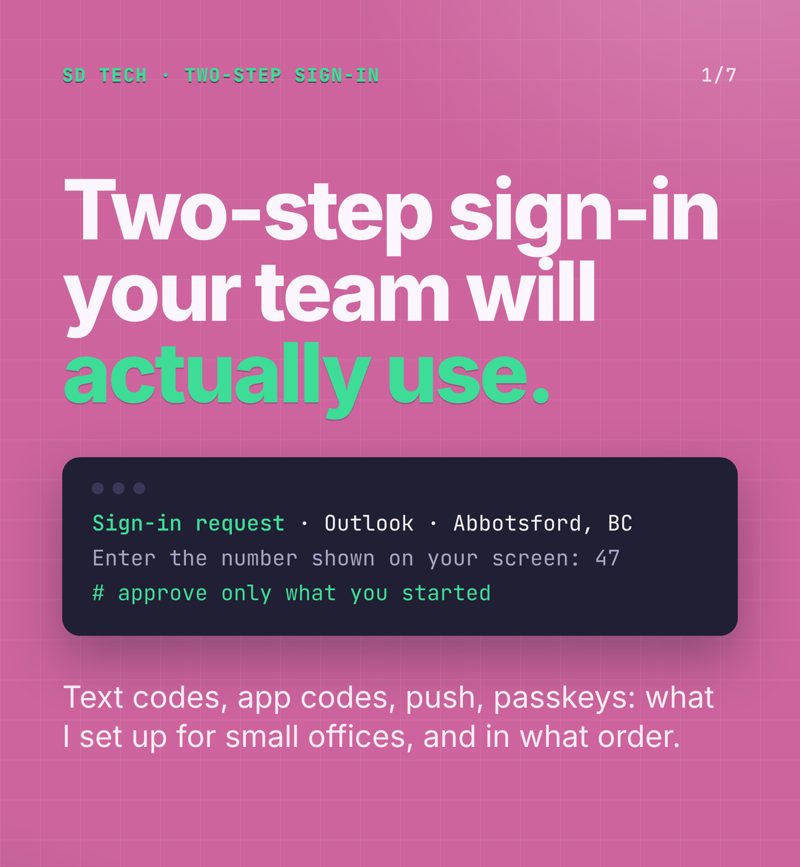
Push with number matching. The app asks "are you signing in?" and you type the number shown on the sign-in screen. Microsoft turned number matching on for every Microsoft Authenticator push, and users can't opt out of it (Microsoft Learn). The Canadian Centre for Cyber Security recommends it because it protects against "MFA fatigue," where an attacker sends prompts until someone taps Approve (ITSAP.30.030). This is what I set up for most staff.
Passkeys and security keys. A passkey (in the Authenticator app, or on a physical key) can't be typed into a fake sign-in page, so it resists phishing. The Cyber Centre strongly recommends FIDO-based sign-in like this. Microsoft's built-in "phishing-resistant MFA" strength accepts FIDO2 security keys, Windows Hello for Business and certificate sign-in (Microsoft Learn). This is what I set up for every admin, with two keys each: one for daily use, one in the safe.
The five-day rollout
- Day 1: two emergency admin accounts. Microsoft recommends two or more cloud-only emergency access accounts, on the
onmicrosoft.comdomain, protected by a phishing-resistant method that's different from your normal admin sign-in (Microsoft Learn). They're the way back in if something goes wrong on day 4. Credentials go in the safe, not on a desk. - Day 2: admins move to passkeys or security keys. Requiring them with a Conditional Access policy needs Microsoft Entra ID P1 (Microsoft Learn), which is included in Business Premium. On a smaller plan, register them anyway and make them the admins' default.
- Day 3: everyone sets up the app. Ten minutes each, at their desk or in the truck, with me or the office lead there. Push with number matching as the default, text as backup.
- Day 4: old methods off. Turn off the methods you've decided against in the Authentication methods policy. Since 30 September 2025, that policy is the only place methods are managed; the old MFA and password-reset pages can't do it any more (Microsoft Learn).
- Day 5: ten minutes with the team. What a real prompt looks like, and what to do with one you didn't start: report it, never approve it. Microsoft's "Report suspicious activity" setting lets people do that from the app or their phone (Microsoft Learn).
What I ran
To see who's registered with what, in PowerShell with the Microsoft Graph module:
Connect-MgGraph -Scopes "AuditLog.Read.All"
Get-MgReportAuthenticationMethodUserRegistrationDetail |
  Select-Object UserPrincipalName, IsAdmin, IsMfaRegistered,
    MethodsRegistered, IsPasswordlessCapable
Sample output, invented office:
UserPrincipalName      IsAdmin IsMfaRegistered MethodsRegistered                      IsPasswordlessCapable
-----------------      ------- --------------- -----------------                      ---------------------
owner@example.ca       True    True            {passKeyDeviceBound, microsoftAuth...} True
office@example.ca      False   True            {mobilePhone}                          False
shop@example.ca        False   False           {}                                     False
What to look for: any account with IsMfaRegistered False (here, the shared shop login, which should become a shared mailbox with no sign-in of its own); any admin whose only methods are a phone number or app codes; and people with mobilePhone alone, who need the app set up before day 4. The fields come from Microsoft's registration details report.
A checklist you can use today
- ☐ Run the registration report and count accounts with no second step.
- ☐ Check that each person has their own sign-in; no shared logins.
- ☐ Two emergency admin accounts exist, and you know where their credentials are.
- ☐ Every admin has a passkey or security key, plus a spare.
- ☐ Number matching push is the default for staff; text codes are backup only.
- ☐ Methods you don't use are off in the Authentication methods policy.
- ☐ The team knows to report a prompt they didn't start.
What I'd check first
The admins. One admin account signing in with a text code is a bigger risk than three staff who haven't set up the app yet. Get the admins onto passkeys and the emergency accounts in place, then bring everyone else across.
I check two-step sign-in on every account in a free IT check-up, and you get a written plan. If you're in the Fraser Valley and want a second set of eyes, book one at sd-techsolutions.com.